








Linking LinkedIn Ads as a source
You can sync data from LinkedIn Ads reports by configuring it as a source in PostHog. The supported reports that can be synced include Account, Campaigns, Campaign Stats, Campaign Groups and Campaign Groups Stats, as described here:
- Accounts
- Campaigns
- Campaign Groups
- Campaign Stats: Ad analytics by CAMPAIGN
- Campaign Group Stats: Ad analytics by CAMPAIGN_GROUP
Additional reports will be added based on user feedback we receive via our in-app support form.
Requirements
- A LinkedIn Ads account with permission to access data from accounts you want to sync.
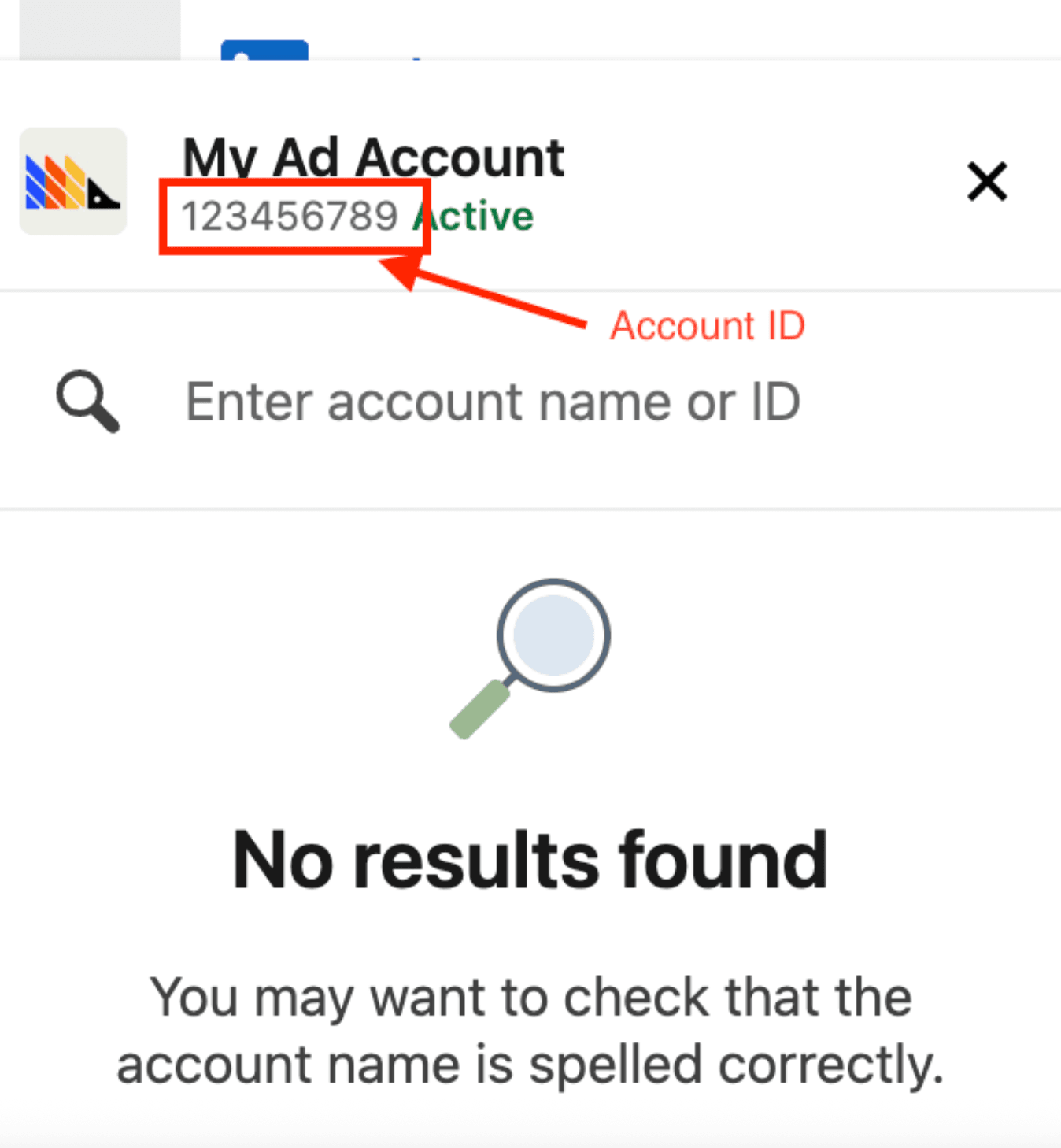
- Your account ID from the campaign manager (see how in the image below, it can also be taken from the URL like
https://www.linkedin.com/campaignmanager/accounts/(ID here)/overview?businessId=personal)
Configuring PostHog
Connect PostHog to your LinkedIn Ads account using a LinkedIn account. The LinkedIn account must have permission to access data.
- In PostHog, go to the Data pipelines tab.
- Open the + New drop-down menu in the top-right and select Source.
- Find LinkedIn Ads in the sources list and click Link.
- Enter the Account ID of the LinkedIn Ads account you want to sync.
- Select an existing LinkedIn Ads account, or create a new integration
- (Optional) Add a prefix for the table name.
PostHog is an all-in-one developer platform for building successful products. We provide product analytics, web analytics, session replay, error tracking,feature flags, experiments, surveys, LLM analytics, data warehouse, CDP, and anAI product assistant to help debug your code, ship features faster, and keep all your usage and customer data in one stack.